Everyone has this folder. Two hundred photos called IMG_4471.JPG through IMG_4670.JPG. Scans named Scan_001, Scan_002, with no clue what's in them. Downloads with the site's naming scheme baked in, spaces and brackets and all.
Renaming them by hand is out of the question, and renaming them badly is worse — because the one thing you can't undo easily is a batch rename that went sideways halfway through.
FileWorks has a Multi-Rename dialog (⌘ + ⇧ + R) built around two ideas: you should be able to see every new name before anything happens, and when you do press the button, every single file should end up with either its new name or its old one — never something in between.
Let's take it apart.
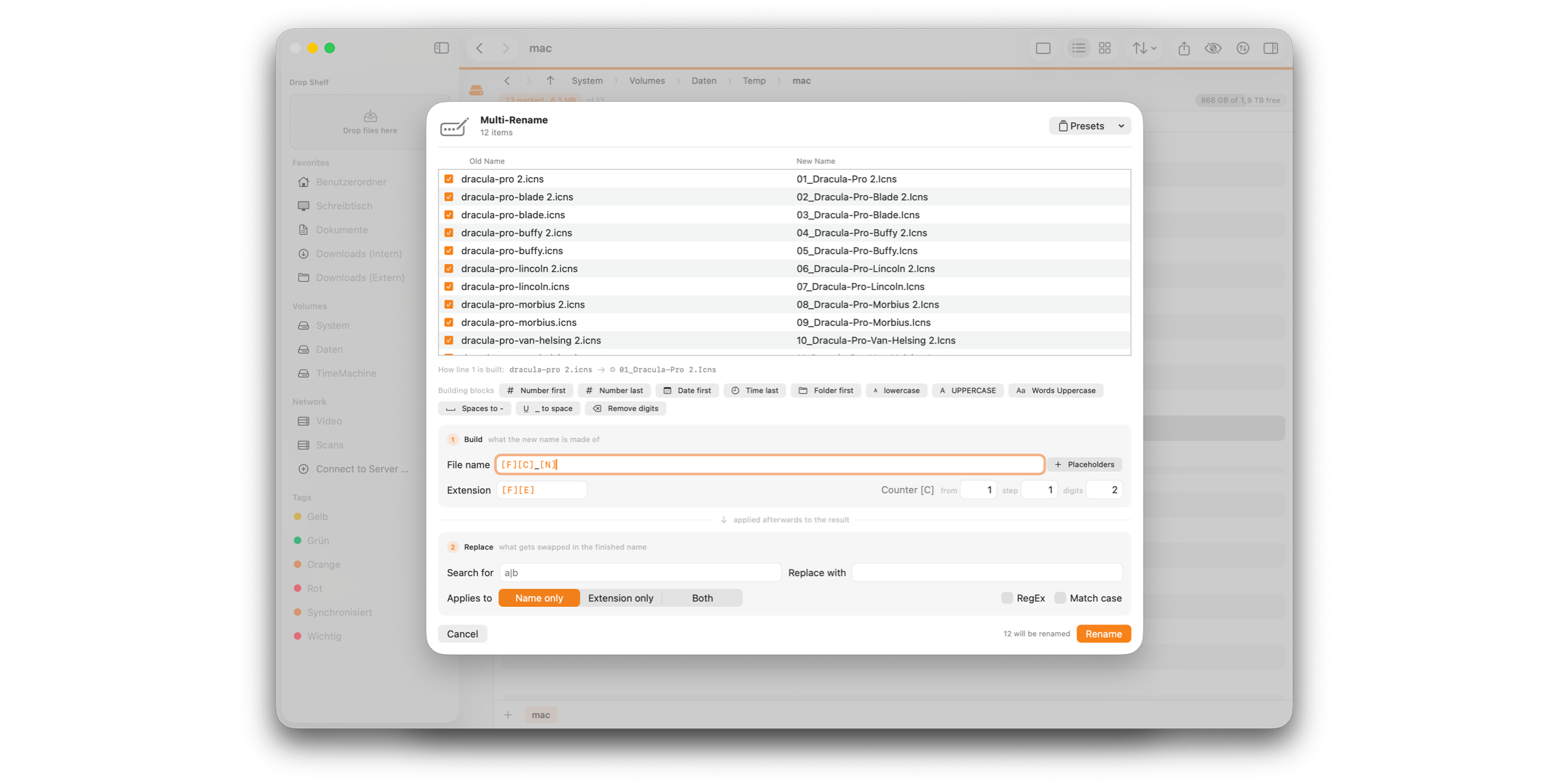
Two stages, and the order matters
The dialog works in two steps, and understanding which is which saves a lot of confusion later:
① Build assembles the new name out of placeholders — name, extension, counter, case.
② Replace then replaces text inside the finished name that stage ① just built.
Between the two, the dialog says applied afterwards to the result, and that line is doing real work. Stage ② never sees the original name. It only ever works on whatever stage ① made of it.
The preview spells this out for the first row, so you can follow the whole journey:
Bild.JPEG → ① 01_Bild.JPEG → ② 01_Bild.jpg
Once that clicks, most "why isn't my replacement working?" moments answer themselves.
Building blocks: the way in
Above the fields sits a row of building blocks — Number first, Date first, lowercase, Spaces to -, and a few more. Click one and it writes the matching placeholder into the mask, or fills in the stage ② fields for you.
Two things worth knowing about them:
A block writes once and is then done. It doesn't stay "switched on". Whatever lands in the field is yours to edit or delete immediately.
They teach you the syntax. After each click you can see which placeholder the block inserted. Do it a few times and you'll find yourself typing them directly — which is the point. The blocks are a ramp, not a ceiling.
Click several in a row and their effects combine. The names tell you where things go: firstwrites to the beginning, last to the end.
Stage ①: the mask
Stage ① gives you two fields — one for the name, one for the extension. Type any fixed text directly. For everything that varies from file to file, insert a placeholder: a short code in square brackets.
[N] is the old name. [C] is a running number. So the mask Holiday_[C]_[N] gives you Holiday_01_Beach, Holiday_02_Harbour, and so on.
Here's the full set:
The name itself
[N]— the original name, without extension.[N2-5]— characters 2 to 5 of the name.[N2,5]— 5 characters starting at position 2.[N2-]— from character 2 to the end.[N-4-]— the last 4 characters. Negative positions count from the end.[E]— the extension, with the same range syntax as[N].
Where the file lives
[P]/[G]— name of the parent / grandparent folder.
Numbering
[C]— a counter, controlled by the from, step and digits fields beside it.[C10+5:3]— the same counter written inline: start 10, step 5, 3 digits. Any part is optional.
Date and time of the modification date
[Y][M][D]— year, month, day.[h][m][s]— hour, minute, second.[d]/[t]— date asYYYY-MM-DD/ time asHH.MM.SS, both safe for file names.
Case
[U]/[L]— UPPERCASE / lowercase from here on.[F]/[S]— Capitalise Every Word / Only the first word.[n]— back to normal case.
Literal brackets
[[/]]— inserts a literal[or].
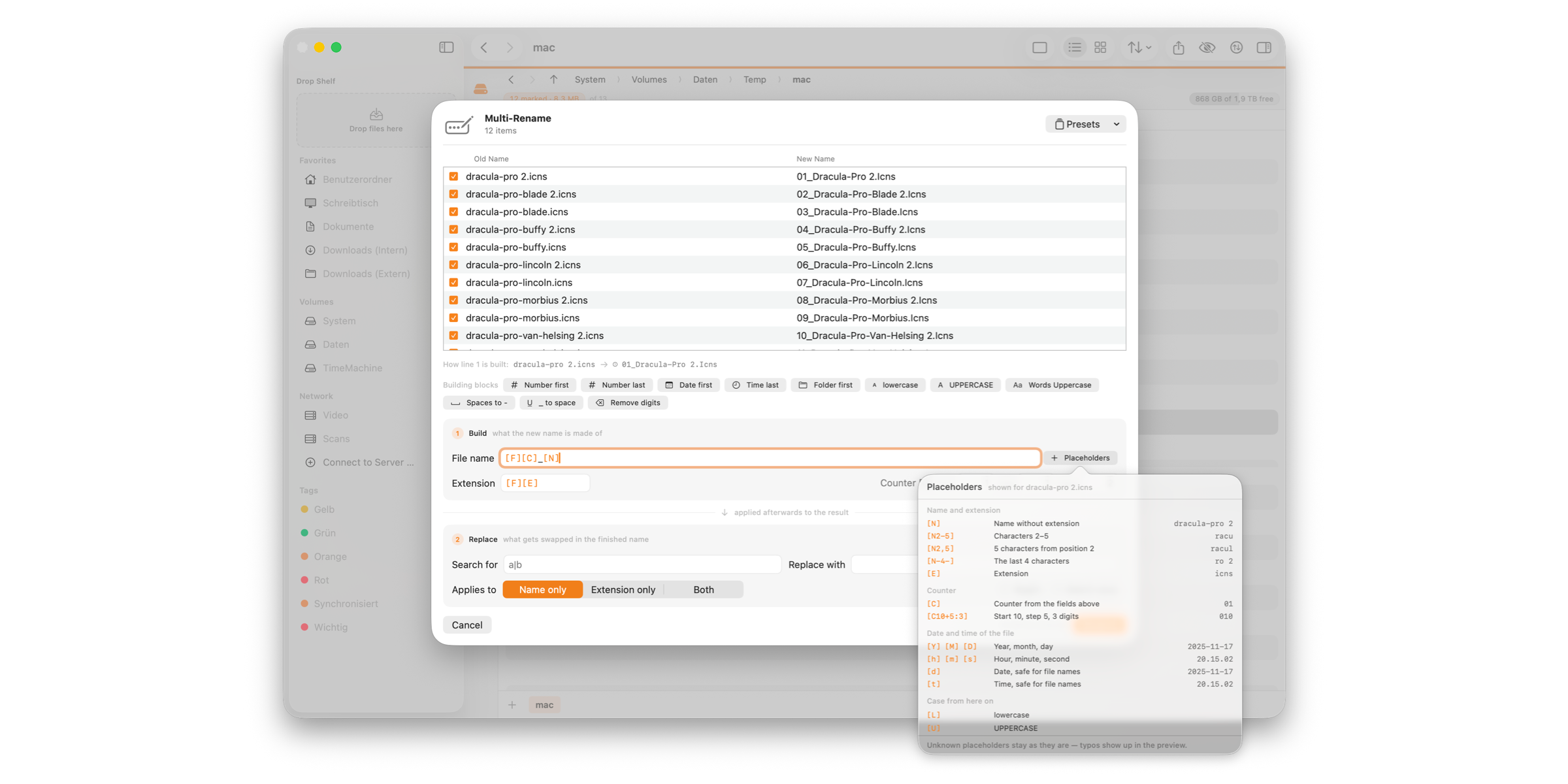
Nobody memorises that, and you don't have to. A button beside each field opens the whole list, and clicking a row drops the placeholder in.
But that list is better than a crib sheet, and this is my favourite small touch in the whole dialog: next to every placeholder it shows what it would produce for your first selected file. Character ranges stop being guesswork. You see immediately that [N2-5] turns Archiv 2.zip into rchi — and you adjust before you've typed anything into the mask at all.
 Two more behaviours worth having in your head:
An unknown placeholder is left alone. Mistype [NN] and it stays in the name, visibly wrong, instead of quietly evaporating. A typo you can see is a typo you can fix.
Case placeholders are a state, not a function. [L] doesn't lowercase "the thing after it" — it switches lowercasing on from that position onwards. So [L][N] lowercases the whole name, while [U][N1-3][n][N4-] uppercases just the first three characters and then returns to normal. A case placeholder in the name mask leaves the extension alone, unless you put one in the extension mask too.
The counter
Beside the extension mask sit the counter's controls: where it starts, what it steps by, how many digits it pads to. Change any of them and the preview updates on the spot, against your real file names.
If you'd rather keep it all in the mask, [C10+5:3] says the same thing inline.
Stage ②: replace
The second stage is a search-and-replace over the name stage ① produced.
Search for / Replace with. Without RegEx you can separate several terms with |, and FileWorks pairs them up with the replacements in order. Where a replacement runs out, the term just drops out — which is a tidy way to delete several things at once. Tick RegEx and you get one pattern with back-references like $1.
Applies to. Name only, extension only, or both. The default is Name only, deliberately: a replacement shouldn't wander into the extension by accident and quietly turn your .pdf into something else.
There is a good reason to choose Both, though, and it's the obvious one — it's the only way to swap a whole extension. .JPEG to .jpg needs it.
Match case. Leave it off and bild also finds BILD.
The preview does the real work
Everything above is just describing the transformation. The preview is where you actually see whether it's the one you wanted.
Every row has a tick. Take it away and that file stays untouched.
And here's the detail that saves you a second pass: an unticked row drops out of the counter too. FileWorks renumbers the rest, so you don't get a gap where the skipped file would have been. Untick three files in the middle and your numbering still runs 01, 02, 03, … without holes.
The row order is the counter order. Drag rows to rearrange them and the numbers follow. If you want the newest file to be number one, drag it to the top.
Conflicts show up in the row they belong to — a target name used twice, a name the folder already contains, a name that wouldn't be valid at all. While any conflict is unresolved, the Rename button stays disabled. There's no "are you sure?" to click through, because there's nothing to be sure about: you fix the mask, the conflict disappears, the button lights up.
Presets vs. building blocks
Both are shortcuts, but they do opposite things and it's worth keeping them straight:
- A building block adds one operation and leaves everything else as it is.
- A preset (the Presets menu at the top of the dialog) replaces the whole scheme.
So blocks are for assembling something now, presets are for recalling something you assembled before. If you have a naming convention you apply monthly, save it once as a preset and it's a single click forever after.
It works on search results too
This one deserves its own section, because it's where a lot of rename tools quietly fall over.
Run a recursive search, get hits from twenty different folders, and multi-rename the lot. FileWorks renames each file where it actually lives — not into the folder the panel happens to be showing.
That sounds obvious until you consider what the naive version does. It reads the visible list and treats it as "the folder", which breaks in both directions at once:
- Two hits from different folders that would end up with the same name get flagged as a collision. But that's the normal case in a search, not a collision at all.
- Real collisions in the actual target folder stay invisible, because that folder was never looked at.
FileWorks reads the contents of every affected folder once, when the dialog opens — including whether that volume is case-sensitive — and checks conflicts per folder against the right one.
The same logic applies to [P] and [G]: they name the folder of the file itself. In search mode, the naive reading would give every hit the name of the search root — and would build target paths there too, quietly turning your rename into a move.
What happens when you press Rename
Now for the part you never see, which is the part I'd actually like you to trust.
It renames in two phases. Everything goes to a temporary name first, then from there to its final name:
Phase 1:  a → a.fwmr-1a2b3c4d
          b → b.fwmr-5e6f7a8b
Phase 2:  a.fwmr-… → b
          b.fwmr-… → a
Why bother? Because in one phase, a ring swap fails at the very first step. Rename a to b while b still exists and you're stuck. Any scheme that reverses an order, swaps two names, or shifts everything up by one runs straight into it. Two phases make swaps just another rename.
The temporary names are visible on purpose. They're not hidden dotfiles, and they carry the original name at the front. If the app were to crash between the phases, you'd find files you can actually see and identify, rather than a folder that looks empty and a set of invisible files you'd have to know to go looking for.
Each file is checked before it's touched. When the dialog opens, FileWorks notes the identity of every file — and the time you spend in the preview counts as part of the window. If something got swapped underneath you while you were adjusting the mask, that file is skipped rather than handed a name meant for something else. It costs only itself; the rest of the batch carries on.
And the promise: a new name or the old one, never an intermediate. If phase 2 fails for some file, it gets its original name back. If that name is no longer free, it gets a free name beside it. Only if both of those fail does the temporary name remain — and then you're told, with "old name → where it actually is" and a Show in Finder button, instead of being left to hunt for a file that seems to have vanished.
There's deliberately no global rollback, and the reasoning is worth a sentence. If you rename 500 files and number 400 fails, undoing 399 renames doesn't leave you better off — those undo operations can fail too, and then you're in a state nobody can reason about. A promise kept per file is stronger than a rollback that might not complete.
One last small thing: the target names are recalculated the moment you click, not lifted from the preview. Text-field timing being what it is, the display could be one keystroke behind — and preview and execution must never disagree.
The short version
- Build, then replace. Stage ② only ever sees what stage ① produced.
- Building blocks write a placeholder and step back — use them to learn the syntax.
- The placeholder list shows what each one would produce for your first file.
- Unticking a row removes it from the counter too, so no gaps in the numbering.
- Row order is counter order — drag to rearrange.
- Conflicts appear inline and block the button until they're gone.
- Works on search results, renaming each file where it lives.
- Two-phase execution means swaps and ring shuffles just work.
- Every file ends up with its new name or its old one — and if neither is possible, you hear about it.
Start with something small and reversible — a folder of twenty test files is a good hour's investment. Once the two-stage model is in your fingers, the two hundred camera photos take about ninety seconds.