Most file managers treat an archive as a dead end. You see photos.zip sitting in the list, and to find out what's in it you have to leave — double-click, wait for some other app to open, hunt through its window, drag things back out. For a file you only wanted to glance inside, that's a lot of ceremony.
FileWorks takes a simpler line: an archive is a folder you can't write into. Double-click it and you're inside. The path bar shows you where you are. The status bar quietly reminds you it's read-only. Everything else works the way it always does.
That one decision makes most of this article short, so let's spend the saved time on the parts that are genuinely interesting — like how packing can turn into moving, and why an archive that looks fine might not be.
Looking inside
Double-click a .zip, .7z, .tar.*, .rar or .iso and it opens like a folder. FileWorks reads whatever the system's libarchive can read, which covers rather more than that list — CPIO, XAR, LHA and friends included. Navigate down through the levels with the path bar exactly as you would anywhere else.
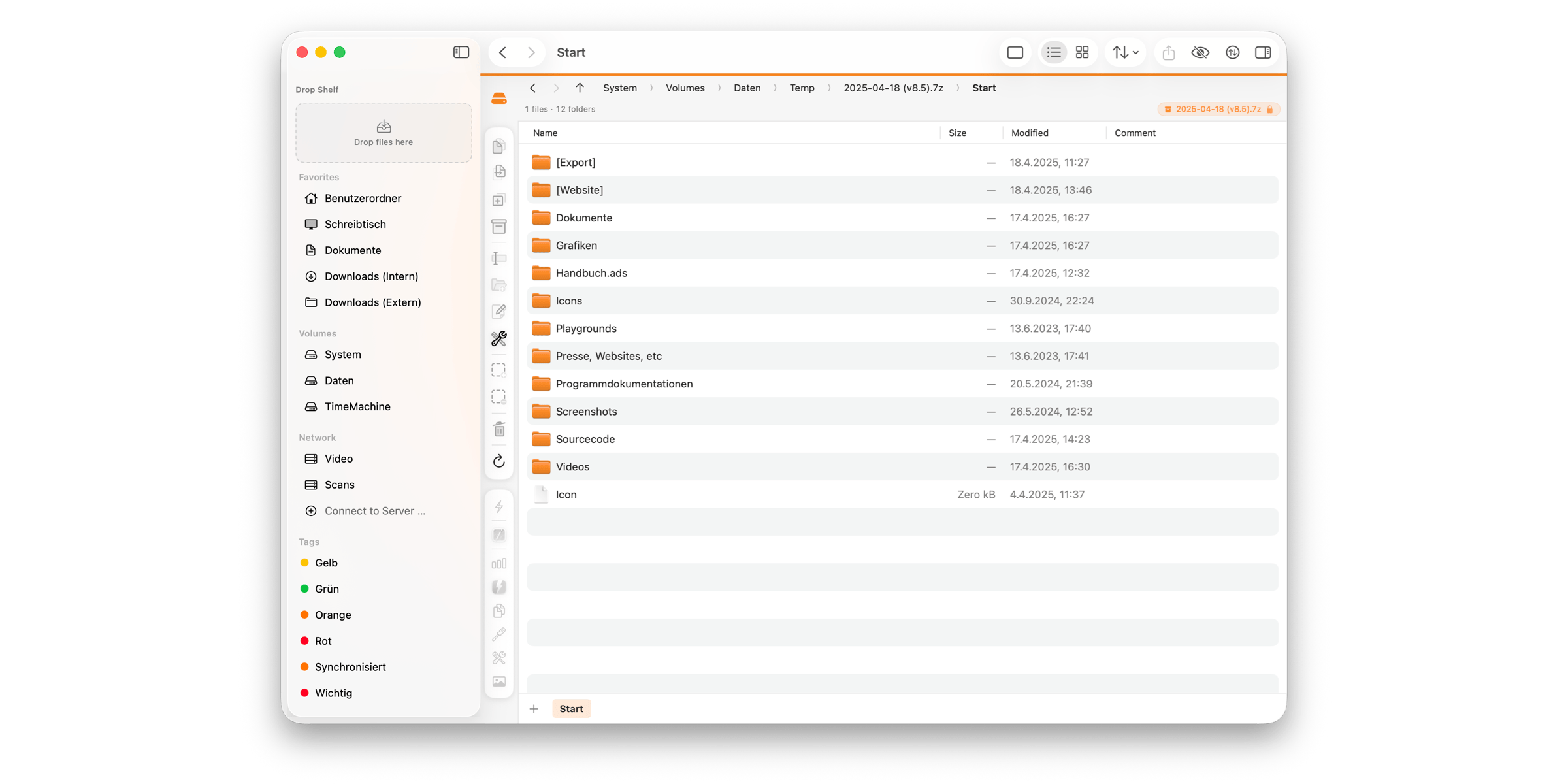 Not your thing? Settings → General → Archives turns browsing off entirely, and a double-click hands the archive to its default app instead.
One thing genuinely doesn't work in there, and it's worth knowing why: your custom tools are greyed out inside an archive. An entry you can see isn't a file yet — there's no path a program could open. Copy it out first and every tool works on it normally.
Searching, on the other hand, does reach inside. A recursive search (⌘ + ⇧ + F) walks into archives too, so a file you packed away two years ago still turns up.
Getting things back out
Several routes, all of them ordinary:
- Copy entries out with F5 to the other panel, or drag them to Finder. The extraction runs through the normal transfer queue — progress, cancel button, conflict handling, the lot.
- Open or edit a single entry. FileWorks extracts it to a cache first, then opens it.
- Drag whole folder subtrees out. They're extracted on drop.
And if you just want the whole thing unpacked without going inside at all, the context menu has the two commands you'd expect from any other file manager:
- Extract Here — puts each archive into its own folder.
- Extract To … — puts everything you selected into one folder you pick.
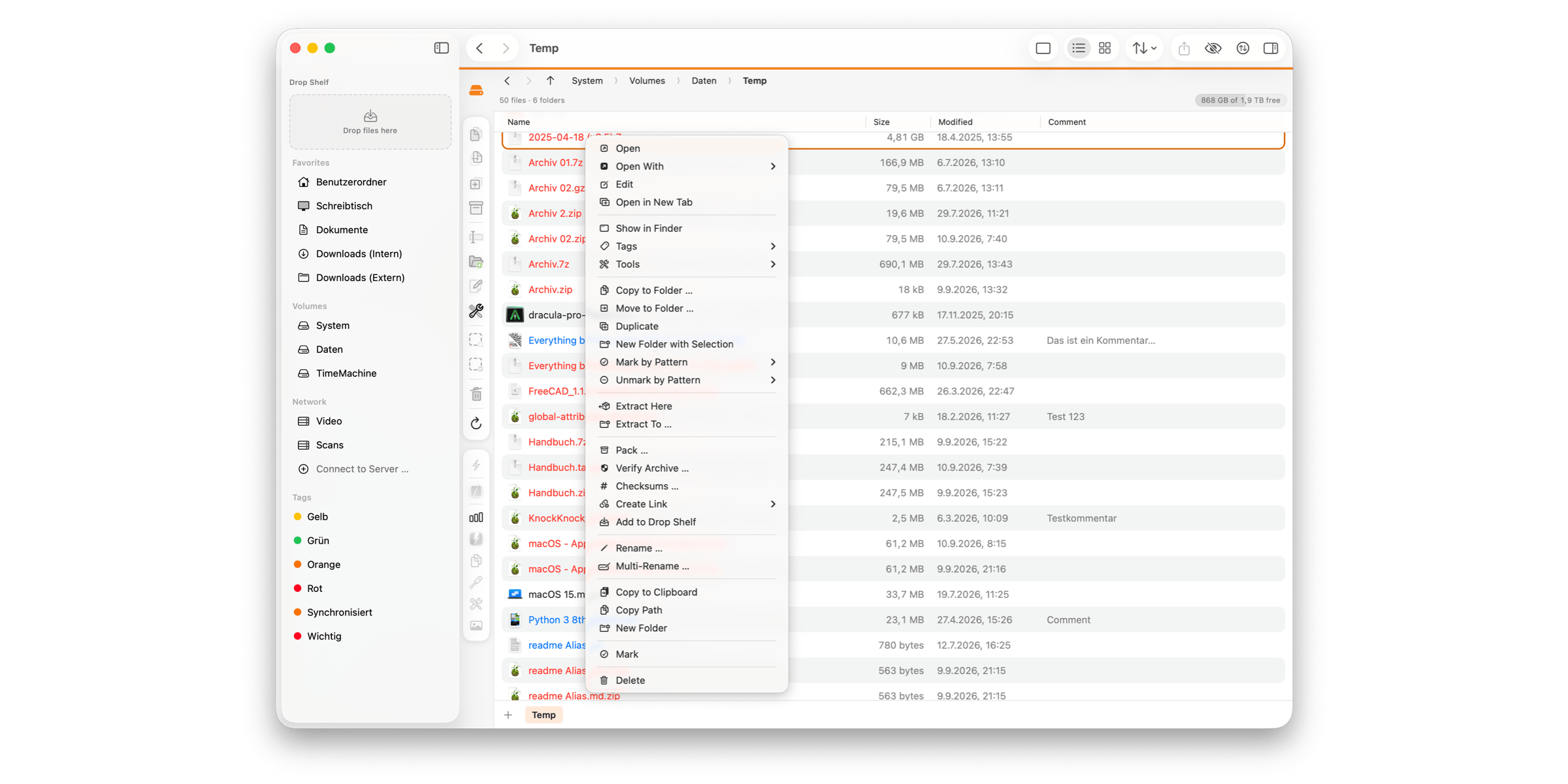 "Here" means the archive's own folder, not the folder the panel happens to be showing. That sounds like hair-splitting until you're looking at search results, where the hits live all over the tree and the panel is showing the search root. The archive's own folder is the only reading that's right in both situations.
You'll also notice these two commands only appear when everything you've selected is a supported archive. With a mixed selection it would be unclear what happens to the rest — and a command that silently skips half your selection is exactly the kind you regret later.
A word on why this is quick
Here's a detail that only shows up when you extract something big.
Compressed formats — tar.gz, tar.xz, solid 7z — have no way to jump to a position. To reach file number 400, you have to decompress everything before it and throw it away. Extract files one at a time and you pay that cost four hundred times over; on a large archive, seconds turn into minutes.
FileWorks keeps the archive open and reads strictly forwards, decompressing the stream once for the whole job. The catalogue even hands out entries in archive order rather than whatever order they happened to land in memory, precisely so the readers never have to jump backwards.
You'll never see any of that. You'll just notice that unpacking a big tar.gz doesn't take all afternoon.
Packing
Mark what you want, then Pack … from the Actions or context menu.
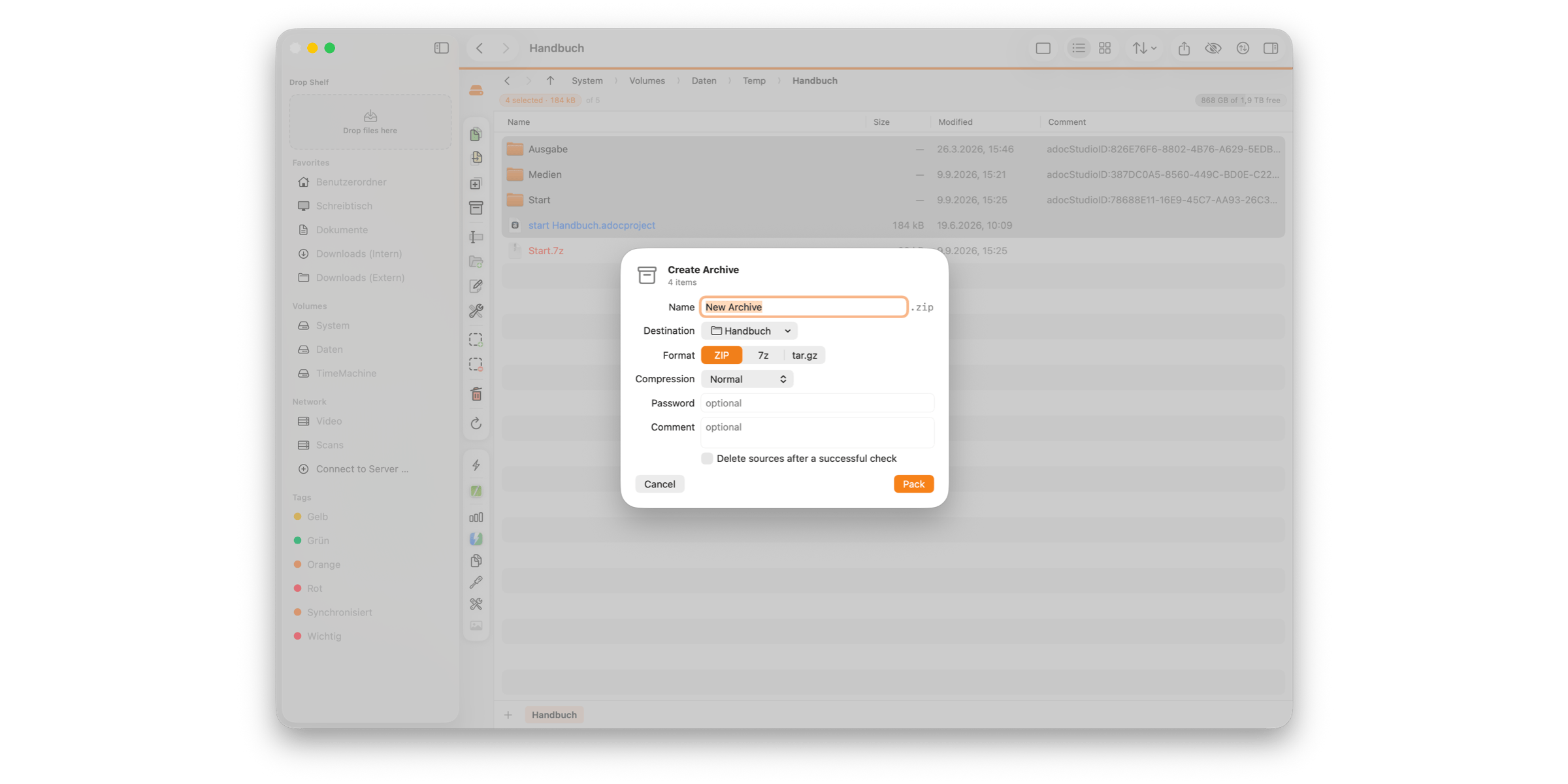 Destination — the folder you're packing from, the other panel's folder, or anywhere via Other Folder …. Small thing, but it saves you moving the finished archive afterwards, which is what you were going to do anyway.
Format — ZIP, 7z or tar.gz.
Compression — None (store only), Fast, Normal or Maximum.
Password (ZIP only) — two choices, and the trade-off is real:
- ZipCrypto is weak, but everything opens it, including Windows Explorer with no extra software.
- AES-256 is secure, but the recipient needs 7-Zip, Keka or similar.
Pick based on who's receiving it, not on which sounds better.
Comment (ZIP only) — stored inside the archive.
A progress bar tracks the packing, and cancelling removes the half-written archive rather than leaving a plausible-looking ruin behind.
One quiet guarantee while we're here: a new archive never overwrites an existing file. If the name is taken you get "Archive 2.zip". Behind the scenes FileWorks writes to a hidden temporary file in the destination folder and only moves it into place at the end — so a cancelled or failed pack can't damage something that was already there.
What can't go into an archive
Special files — sockets, device files, FIFOs — can't be archived. Their "contents" aren't bytes on a disk, they're a connection.
FileWorks doesn't skip them silently. Every one gets an error entry naming what it was, and if nothing packable is left at all, the operation reports that instead of handing you a cheerful "done" over an empty archive.
That sounds like pedantry. It isn't, and the next section is why.
When packing becomes moving
Normally your originals stay put, so afterwards you have everything twice — once loose, once in the archive. Tick Delete sources after a successful check and FileWorks clears the originals away.
But look at the order of those words. Not "delete sources". Delete sources after a successful check. The operation has three phases, and you can watch them go by in the progress bar:
packing → checking → removing
While packing, FileWorks computes a fingerprint for every file — from exactly the bytes that go into the archive. Then it reads the finished archive back and compares fingerprints. The originals are removed only if all three of these hold:
- Nothing was skipped, so no file was unreadable.
- The archive could be read back in full.
- Every fingerprint matches its source file.
Fail any one and your originals are untouched, and the dialog tells you which condition broke. The archive stays too, so you can go and look at it.
Now back to those special files. If a socket inside a folder were skipped silently, the archive would be built without it, the failure list would be empty, all three conditions would appear to hold — and the originals would be deleted. The file would be gone and not in the archive. That's the entire reason skipped items are reported: the delete step trusts that list.
A couple of smaller points:
Whether the originals go to the Trash or are deleted permanently follows Settings → General → Move items to the Trash. The checkbox label changes to match, so it tells you what's about to happen each time rather than making you remember.
And FileWorks deliberately forgets the tick. Next time you pack, it's clear again. A permanently enabled delete option is precisely the setting you switch on once, forget about, and get surprised by two sessions later.
If the archive would land inside a folder you're packing, the option is disabled outright — deleting the source would take the archive with it.
Verifying an archive
Here's the uncomfortable thing about archives: they rot quietly.
A transfer gets cut short. A disk ages. A copy arrives not quite complete. From the outside everything looks right — the file is there, the size is plausible, the icon is the icon. You find out when you try to extract it, which might be years from now and might be the one moment you actually needed it.
Mark an archive (or several) and choose Verify Archive …. FileWorks reads every entry right through, in full, and throws the data away. Nothing is written. The only question being asked is whether all of it can be read without errors — so it takes about as long as a full extraction, and produces nothing but an answer.
For one archive the result sits in the header. For several you get a row per archive, with every failing entry named, and Copy Report puts the list on your clipboard.
What a pass actually proves
This is the part I'd most like you to take away, because "verified ✓" means three genuinely different things depending on the format — and FileWorks says which one you got:
"every checksum matches" — ZIP and 7z store a checksum for each individual entry. Damage can not only be detected but pinned to a specific file.
"the checksum over the whole archive matches" — tar.gz and relatives have one checksum across the whole stream. Damage shows up, but can't be narrowed down. From the damaged point on, the rest is unreadable anyway.
"content read in full" — everything else. FileWorks claims only what it can prove: everything could be read. A plain .tar, for instance, carries no checksums over file contents at all. That's not FileWorks being cautious; that's the format having nothing to check against.
A tool that printed a green tick for all three would be telling you the same thing three times while meaning something different each time.
Encrypted entries
If an entry is encrypted, you're asked for the password. Cancel and FileWorks checks what it can without one — but the skipped entries show up as not checked (encrypted), and the archive does not count as intact. An unread entry simply isn't a checked entry, and saying otherwise would be the one lie that matters here.
Old ZipCrypto archives have a quirk worth knowing. That scheme checks a password against a single byte, so roughly one wrong password in 256 gets waved through at first, and the error only surfaces at the end of the entry when the checksum is tested. FileWorks recognises this and asks for the password again, instead of accusing your archive of being damaged when it's actually your typing.
Passwords
Open or extract an encrypted archive and FileWorks asks. Mistype it and it asks again.
A password is remembered for that archive only, and only for the current session. It is never written to disk. Close FileWorks and it's gone.
One more safety note
Archives can contain entries with hostile paths — an absolute /etc/passwd, or .. components designed to climb out of the folder you're extracting into. It's an old trick with a name ("Zip-Slip") and it still catches tools out.
FileWorks discards such paths while it's cataloguing the archive, so they never appear in the list in the first place. There's nothing for you to switch on, and nothing to be careful about — which is rather the point.
The short version
- An archive is a read-only folder. Double-click and walk in.
- Extract Here / Extract To … in the context menu when you don't want to go in at all.
- Searching reaches inside archives; custom tools don't — copy the file out first.
- Pack with a destination of your choosing; a new archive never overwrites an existing file.
- "Delete sources after a successful check" is a verified move: pack, read back, compare fingerprints, and only then remove. Anything skipped blocks the deletion.
- Verify Archive … catches silent rot — and tells you honestly how much its verdict is worth for that format.
- Passwords live for one session and never touch the disk.
If you take one habit away: run Verify Archive … on your backup archives once in a while. It costs you the time of an extraction and nothing else, and it's the only way to find out that an archive is fine before the day you need it to be.